Quick Answer: Automatic Monitor DNS detects unauthorized or accidental changes to your domain records by polling your authoritative nameservers for updates to your SOA (Start of Authority) serial number and record values. By receiving instant alerts when a record changes or fails to resolve, you can prevent downtime, subdomain takeovers, and email delivery failures before they impact your users.
Why DNS Changes Need Continuous Monitoring
You wake up, make yourself a cup of coffee, and then check your dashboard. Everything seems to be okay, all the lights are green. By noon, your support team is getting a lot of tickets. It turns out the site is down for users in Europe. You’re also getting bounced emails from your clients. You start to investigate what’s going on. You check your web server, and everything looks good. The service is up and running the firewall is open. The logs don’t show any problems.
Eventually, you realize the problem wasn’t your code; it was your DNS. Someone or a misconfigured automated script changed an A record, or your registrar’s nameserver glitched and dropped a zone file update. By the time you find the issue, you have already lost half a day of traffic.
The reality of the modern web is that your DNS is just as critical as your database or your server infrastructure. If your domain name doesn’t resolve, your site effectively does not exist. Automatic monitoring isn’t just a “nice to have” for large enterprises; it is the only way to catch infrastructure drift in real-time.
What Is DNS Change Monitoring?
DNS monitoring is the automated process of continuously querying your domain’s authoritative nameservers to verify that your DNS records (A, CNAME, MX, TXT, etc.) match your expected configuration. Unlike standard uptime monitoring, which simply checks if your server is responding, DNS monitoring validates the “phonebook” that tells the internet where to find your server in the first place.
Manual vs Automated DNS Monitoring
| Method | Focus | Insight Depth | Alert Sensitivity | Best For |
| Basic Uptime Check | Server Response | Low | Only when site is dead | Small personal blogs |
| Record Polling | Specific A/MX Records | Medium | When values change | Standard business sites |
| SOA Serial Audit | Zone File State | High | When any record changes | Infrastructure/DevOps |
| Global Resolution | Propagation/ISP View | Medium | Regional outages | E-commerce/Global scale |
Worth knowing: If you rely on basic uptime checks, you are only being alerted after the DNS has already failed. True DNS monitoring alerts you when configuration changes occur, giving you a chance to roll back before the change propagates to every ISP cache worldwide.
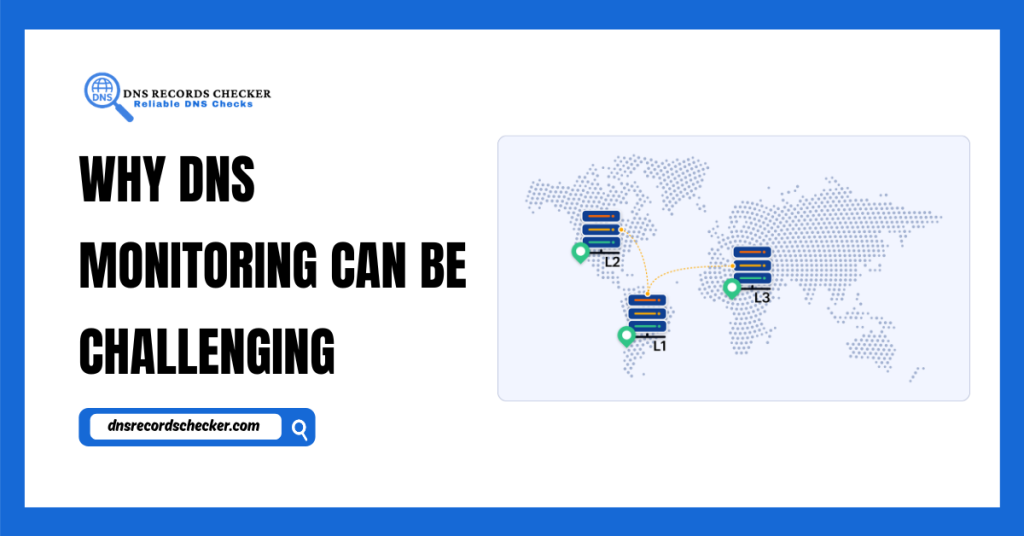
Why DNS Monitoring Can Be Challenging
You might wonder why you can’t just “ping” your DNS every minute. Here is the thing: DNS was built for resilience and caching, not for real-time verification. When you change a record, it doesn’t instantly update across the internet.
Recursive resolvers the systems your ISP uses to look up your domain are designed to hold onto that information based on the Time-To-Live (TTL) value you set. If you set a 24-hour TTL, that is how long the internet will likely remember your old IP address.
Automated monitoring tools must therefore account for two distinct layers:
- Authoritative Consistency: Checking your master nameserver to see if the record has actually changed there.
- Propagation Tracking: Checking recursive resolvers globally to see if the internet is actually reflecting that change.
Most monitoring tools focus on the first part because it is actionable. If your authoritative record is wrong, the fix is immediate. If your record is right but propagation is slow, the fix is patience.
How to Monitor DNS Changes Automatically
To set up an effective automated system, you need to choose between a hosted monitoring service and a custom-built solution. For most, a hosted service is more reliable because it performs checks from multiple geographic locations.
Define Your DNS Baseline
Before you start automating things, you need to figure out what is supposed to work. First, you should export your current zone file. You have to know which IP addresses your A records are supposed to be pointing to. You also need to know what your current MX, SPF, and TXT records look like. Taken together, all of this information is your baseline for the zone file.
Choose the Right Monitoring Interval
When you have a monitor that checks every 10 seconds, you will get a lot of noise and little value. The thing is, DNS records checker do not change often. For businesses, it is better to check every 5 minutes or every 15 minutes. If you are in the middle of a migration, you might want to check every 1 minute for a while.
Configure DNS Alert Notifications
Distinguish between “Alert” and “Critical.”
- Alert: A record changed (e.g., your IP address was updated by your dev team). This is useful to know, but it might not be an outage.
- Critical: The domain failed to resolve, or the SOA record serial number did not increment as expected. This means your update failed, and your site is potentially unreachable.
Automate DNS Monitoring With CLI Tools
If you do not want to use a third-party dashboard, you can make a monitor using dig and a cron job. This script checks your A record. It sends a Slack alert or an email alert if the IP address of your A record changes.
Example script structure
CURRENT_IP=$(dig +short example.com)
EXPECTED_IP=“192.0.2.1”
if [ “$CURRENT_IP” != “$EXPECTED_IP” ]; then
echo “Warning: DNS change detected!” | mail -s “DNS Alert” admin@example.com
fi
Integrate DNS Monitoring With CI/CD Pipelines
To do things right, you should make checking your Domain Name System part of your Continuous Integration and Continuous Deployment process. If the tools you use to set up your infrastructure, such as Terraform or CloudFormation, make changes to your Domain Name System, your monitoring tool should receive a message about them via an Application Programming Interface hook. This stops you from getting alerts when you are actually making planned changes.
DNS Monitoring Security Best Practices
DNS is a common vector for sophisticated attacks, including subdomain takeovers and cache poisoning. Monitoring is your first line of defense.
- Monitor TXT Records Specifically: Subdomain takeovers often involve an attacker hijacking an unused CNAME record. If you are monitoring your zone, you should receive an alert the moment a new, unexpected record appears in your zone file.
- Use DNSSEC: If your registrar supports it, enable DNSSEC. It verifies that the DNS response you receive is the one your server actually sent. A monitor should be configured to alert you if DNSSEC validation fails, as this is often a sign of a man-in-the-middle attack.
- Audit the SOA Serial: The Start of Authority (SOA) record contains a serial number. Every time you update your zone file, this number must increment. If your monitor sees an update to a record but the SOA serial number hasn’t changed, your nameservers are likely out of sync.
- Track Nameserver Changes: Attackers sometimes change the NS records to point to their own rogue nameservers. Ensure your monitor tracks NS records specifically, not just A records.
Troubleshooting Alert Fatigue
The biggest reason people disable DNS monitoring is that they get buried in “False Positives.”
Problem: You get alerts every time you perform a legitimate update.
- Cause: Your monitoring tool is isolated from your deployment process.
- Fix: Use an API integration. If you are deploying via a script, have the script temporarily “silence” the monitor or update its expected value before deployment begins.
Problem: You receive alerts about regional failures that resolve on their own.
- Cause: Internet congestion or transient ISP errors.
- Fix: Increase the “retry” threshold. Do not alert unless the monitor fails three consecutive checks from three different geographic locations.
Problem: The monitor alerts, but the DNS is technically “correct.”
- Cause: CDN or Load Balancer rotation.
- Fix: If you use a service like Cloudflare or AWS Route 53, your IP address might change frequently. Do not monitor the A record for the root domain; monitor the CNAME or the Alias target instead.
Conclusion: Trusting the Automation
DNS infrastructure is like the behind-the-scenes foundation of your website. When it’s working smoothly, you might not even notice it’s there. If something goes wrong, you’ll know. You do not have to check your zone files yourself every day. What you really need is a system that can monitor and verify them automatically for you. This way, your DNS infrastructure stays healthy. You get alerts if anything goes wrong.
- Establish a baseline: Document your records before you automate.
- Deploy a monitor: Use a service that tracks your SOA serial and key records.
- Integrate with CI/CD: Link your deployment process to your monitoring so you aren’t paged for your own updates.
When your DNS configuration is stable, you can focus on building features. When it breaks, you will know immediately, not because a customer called you, but because your monitor caught the drift while you were still finishing your coffee. If you want to check your current status, dnsrecordschecker.com is a good starting point for seeing how your records are resolving across the web.
Frequently Asked Questions
1. Does DNS monitoring slow down my website?
Not at all. A monitoring service is like any person visiting your website from the internet. It checks your website’s address, gets the information, and then goes away. Your server does not even notice these checks, so they do not affect how your website works or how well your server is doing. It is, like a visitor. Your website’s speed is not affected. The server handles it like any request.
2. Can I use free tools to automate this?
For a project or a personal blog, the free options are usually enough. If your website is making money, do not rely on free services for important things. Paid services provide the dependability, immediate notifications, and regular checks you need when a problem arises. You get services like PagerDuty integration that help in case of an emergency.
3. What happens if the monitoring service goes down?
Most professional services have their own high-availability setup to prevent this. But if you’re the type who likes insurance on top of insurance, you can use “redundant monitoring.” Simply set up two different providers in different parts of the world. If one goes down or reports a false positive, the other verifies it.
4. Why is my monitor showing a different IP than what I set?
This usually means you’re using a proxy service (like Cloudflare). Your monitor is seeing the “public face” of the proxy, not the “home address” of your backend server. That’s totally normal, just make sure your monitor is configured to expect the proxy’s IP address, not your origin server’s private IP.
5. How often should I update my monitoring records?
Treat your monitoring configuration like you treat your code. If you set up your system to update your infrastructure, do the same thing for your monitor updates. When you make a change by hand, you should update your monitor immediately after clicking the save button. If you do not keep these things up, your monitor will start sounding alarms, which will be really annoying.
6. Is it better to monitor the SOA or the A record?
Don’t choose to do both. The A record is the destination; it’s what your users see when they type in your URL. The SOA (Start of Authority) serial number is the health check for the nameserver itself. It tells you if your nameserver has actually processed and published the update you sent it.
Latest Posts: